

Adding a Text Element
- Login to the backend of your Curator instance (e.g.
http://curatorexample.com/backend). - Navigate to the Content > Pages section from the left-hand menu.
- Find the page you want to add your form to from the Pages list or click “New Page” to create a new page.
- Add a new element to your page, and when the modal pops-up select the “Text” option.
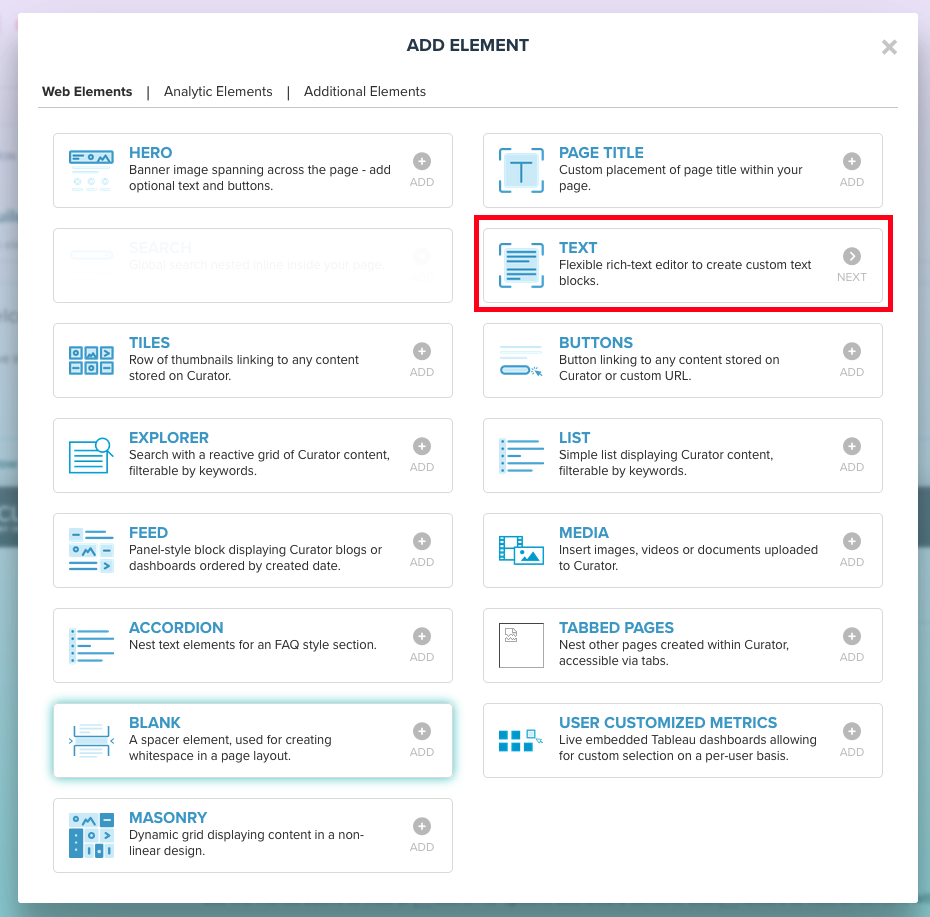
- You will then be prompted with the WYSIWYG editor, where you can add and format your text, add links, and images.

What Text Elements Can Contain
Text elements hold formatted text, links, images, tables, and videos. Curator removes anything that could run code when a page is saved and again when it is shown: scripts, event handler attributes such asonclick, Vue directives
such as @click, javascript: links, forms, and style tags. Links can use http, https, mailto, tel, sms,
webcal, msteams, slack, and zoommtg addresses, and relative addresses. The same rules apply to hero headings
and descriptions, accordion panels, page descriptions, the text sections of the Terms of Service, notices, and
tutorial slides.
Videos inserted with the editor keep working when they come from YouTube, Vimeo, Loom, Wistia, SharePoint, or
Microsoft Stream over https. Curator removes every other embedded frame. To embed another site, use the Embed
element. For scripts or custom HTML, use the Unrestricted HTML element, which requires the Manage custom code
backend permission. See Backend Administrator Permissions.
Page Variables
Page variables can be used to display important user or session based information on pages. They work in Text elements, hero headings and descriptions, and the text sections of the Terms of Service.{{ display_name }}: Displays the display name for the logged in user{{ full_name }}: Displays the full name for the logged in user{{ first_name }}: Displays the first name for the logged in user{{ last_name }}: Displays the last name for the logged in user{{ username }}: Displays the Curator username for the logged in user{{ original_username }}: Displays the original username for the logged in user
{% if %} blocks or {{ }} expressions with
other names, is shown on the page as plain text.