

Backend User Permissions
After a Tableau connection is saved, the Tableau section may not appear in the backend navigation for some users. This is a permissions issue — the connection is valid, but the backend user has not been granted access to the Tableau plugin. Curator automatically grants backend permissions to the user who saves the connection. Other backend users must be granted access manually:- Log in as a super-administrator.
- Navigate to Settings > Administrators.
- Open the affected user’s record and click the Permissions tab.
- Under the Tableau section, enable the required permissions (Manage Tableau Settings, Manage Tableau Dashboards, etc.).
- Save the user record.
Tableau API Debugging
Sometimes there are issues that are hard to diagnose without seeing exactly which API calls Curator is making to Tableau and what responses Curator is getting back from Tableau. To log all of those API calls, Curator provides a Debug Mode for Tableau Server.Side Effects
A word of warning though, when this debug mode is enabled, the amount of logging that takes place is drastically increased and may fill up your server if left on for long periods. Be sure to turn it back off once you’ve logged enough to diagnose the issue. For more information about Curator’s logging systems, see the Logging Overview.How to Enable Debug Mode
To turn on Curator’s Debug Mode for Tableau Server:- Navigate to Backend > Settings > Tableau > Tableau Server Settings > Advanced tab.
- Toggle on the switch labeled Debug Mode for Tableau Server.
- Save the settings by using the button in the upper right.
Using Debug Mode to Troubleshoot
Once Curator’s Debug Mode for Tableau Server is enabled, you’ll want to recreate the scenario that led to the troublesome behavior and then view the debug logs by navigating to Backend > Settings > Logs > Event log. If you don’t see the applicable API calls in the logs, you may need to clear Curator’s cache by using the Clear Cache button in the upper right portion of the Backend, and then repeat the steps to recreate the troublesome scenario.Using Postman to Test Connection
Sometimes, it’s difficult to establish a connection to Tableau and the reason why isn’t clear. One method to help rule out bugs in Curator is to use the Postman application to directly make the API call. This document will guide you through using Postman to authenticate to Tableau’s REST API like Curator does behind the scenes.Install Postman
The first step is to download and install Postman. You can get it from: https://www.postman.com/downloads/Make API Call
Follow these steps to configure a new API call against Tableau’s REST API.- Open Postman and start a new tab.
-
Enter your Tableau Server/Cloud URL into the URL bar. Append
/api/3.4/auth/signin. Update the API version if needed based on this page. -
Change the request type from
GETtoPOST. - Click on the Body tab.
- Select raw.
-
In the text box, copy and paste the following XML:
Username/Password:
Personal Access Token (PAT):
- Fill in the username/password or PAT name/secret, and site content URL details within the above XML.
- Click the Send button.
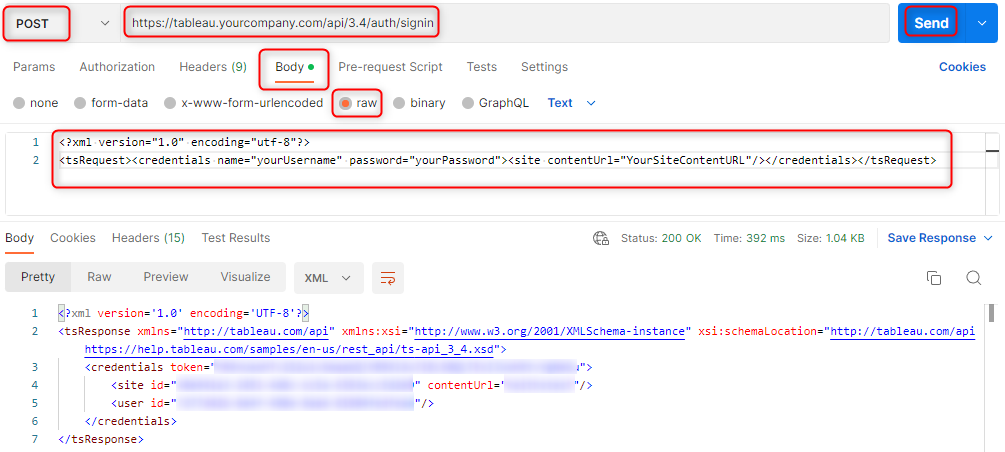
X-Tableau-Auth and the value is your credentials session
token. If this token expires, you’ll need to make a new request to the signin end point to get a new token.
Admin Account Login with Multiple Connections
When Curator is configured with multiple Tableau connections (for example, a production server and a test server), only one connection can be designated as the primary connection. The primary connection controls which Tableau Server’s user accounts are synced into Curator and, therefore, which accounts can log in to the portal.Symptom
An admin account that exists on one Tableau Server can log in to the portal, while an admin account that exists on a different Tableau Server cannot. The login attempt may fail silently or return an authentication error, even though the credentials are correct on their respective Tableau Server.Cause
Curator’s Tableau Sync only pulls user accounts from the primary connection. If your admin account exists on a non-primary connection, that account is never synced into Curator and cannot be used to log in to the portal. This limitation also applies when the connection uses theTableau Server authentication type — users must exist on the
primary site of the primary server, not merely be synced from elsewhere, in order to authenticate against the portal.
Resolution
There are two paths forward depending on your requirements.Option 1: Consolidate Users on the Primary Connection
If you want to keep all Tableau connections under a single Curator instance, you need to ensure all users who must log in to the portal exist on the primary site of the primary Tableau Server. There are two ways to approach this:- Add users directly to the primary site — Create the accounts on the primary Tableau Server’s primary site so they are picked up by Tableau Sync. Note that usernames must match exactly across Tableau Servers so that Curator can correctly associate a portal login with the right account on each server. Also be aware that users who exist on both Tableau Servers will require a license on each, which can significantly increase licensing costs if there is little overlap between the two user populations.
- Create a dedicated authentication site — Set up a separate site on the primary Tableau Server that contains no content and exists solely to hold user accounts for Curator’s sync. Configure that site as the primary site in Curator’s connection settings. Users must still exist on this site with usernames that match their accounts on the other Tableau Server, and the same per-server licensing considerations apply. However, this approach keeps content permissions and access concerns separate from portal authentication while still allowing a single Curator instance to serve all users.
- Navigate to Backend > Integration > Connections.
- Locate the connection that contains the admin account you want to use for portal login.
- Click to edit that connection and check whether the Primary toggle is enabled.
- If it is not the primary connection, enable the Primary toggle. Only one connection can be primary at a time, so enabling it on this connection will automatically disable it on the previous primary connection.
- Save the connection settings.
- Run a Tableau Sync to pull the updated user accounts from the new primary connection.
- Verify that the admin account can now log in to the portal.
Option 2: Deploy Separate Curator Instances
If you have two distinct user populations that each require ongoing access to their own Tableau Server — for example, an internal team that must always reach the production server and an external partner team that must always reach a separate partner server — deploy separate Curator instances, one per Tableau Server. Each instance is configured with only one Tableau connection, so its primary connection is unambiguous and each user population has its own portal backed by the correct server. Note that licensing varies depending on your use case:- Two production Curator instances — Each production-level Curator portal requires its own Curator license, so if each Tableau Server/Curator pair has a different purpose for their respective users, then this will require separate Curator licenses for each.
- Separating test and production environments — If one instance is a production portal and the other is a matching test environment for a separate, but equivalent test Tableau Server, this is covered under the existing Curator license. Contact InterWorks if you have questions about your specific licensing situation.
Migrating Between Tableau Cloud Sites
When a Tableau Cloud tenant is migrated from one site to another (for example, moving from a legacy site to a newly provisioned one), Curator will continue to reference the old site until its connection settings are updated. After migration, users will commonly report permission errors such as dashboards failing to load, thumbnails disappearing, or content that was previously visible no longer appearing in listings. These errors are almost always caused by stale cached permission data and outdated connection credentials pointing at the previous site. Work through the following checklist on the Curator backend to point the connection at the new Tableau Cloud site:- Navigate to Backend > Settings > Tableau > Tableau Server Settings.
- Update the Tableau Server URL to match the new Tableau Cloud host (for example,
https://10ax.online.tableau.com). - Update the Site Content URL to the content URL of the new site. This is the value that appears in the Tableau
Cloud browser URL immediately after
/site/when you are signed in. - Regenerate the Personal Access Token (PAT) on the new Tableau Cloud site and update both the Personal Access Token Name and Personal Access Token fields in Curator. PATs are site-specific and will not carry over from the old site.
- Verify the Connected App configuration in the new site. The Client ID, Secret ID, and Secret Value must all be regenerated on the new site and updated in Curator. See Creating Integrations: Tableau Connection - Connected Apps for full details.
- Update any entries under Secondary Sites so that each one points at its equivalent site on the new Tableau Cloud host, including the Site Content URL, PAT credentials, and Connected App details for each secondary site.
- Save the connection settings using the button in the upper right of the backend.
- Clear the backend cache using the Clear Cache button in the upper right of the backend. This step is required — skipping it will cause the permission errors described below to persist.
- Test the connection by loading a Dashboard as an end user and confirming that content, thumbnails, and permissions all resolve correctly.